This is default featured slide 1 title

Go to Blogger edit html and find these sentences.Now replace these sentences with your own descriptions.

This is default featured slide 2 title

Go to Blogger edit html and find these sentences.Now replace these sentences with your own descriptions.

This is default featured slide 3 title

Go to Blogger edit html and find these sentences.Now replace these sentences with your own descriptions.

This is default featured slide 4 title

Go to Blogger edit html and find these sentences.Now replace these sentences with your own descriptions.

This is default featured slide 5 title

Go to Blogger edit html and find these sentences.Now replace these sentences with your own descriptions.

Showing posts with label Programming. Show all posts

Get The Help Here C , C++, java , html Programing Language


Tutorials section of programming simplified. Here you will find tutorials on c graphics programming, game programming, mouse programming in c, project development. Video tutorials are also available which explain ,any program of c and c++ Language,java progam simple Java programs. These codes demonstrates how to get input from user, working with loops, strings and arrays., html help etc....
C-Languagec%252B%252B-logo      html-guide-logo1

If U want Any Program in c,c++,java and html Comment here And Get Your Program......
If u think this post helpfull For you like our Facebook Page And Subscribe Me 

C programming language - Ebook


It is structured programming language that means we can perform any operation on to group of values & we can use in group.
It is case sensitive language that means it is differentiate between capital & small letter.


Click Here To Download 

How to run Turbo C++ in Windows 7 in full Screen


  1. Create a new folder in your C:  and rename it to ‘turbo’ [or anyone you feel like]. Reason for doing it will be mentioned as you read.
  2. Now, run the installed setup file [TC3setup.exe] and give the extraction position as
  3. Now, download the DosBox setup from here
  4. Install DosBox in your system.
  5. Now run DosBox. A command prompt type window will appear. Now note that there is a difference between the command prompt our system is equipped with and this version of command prompt. This emulator is 32-bit in contrary to native 16-bit prompt, therefore, allowing you to run it in full screen mode.
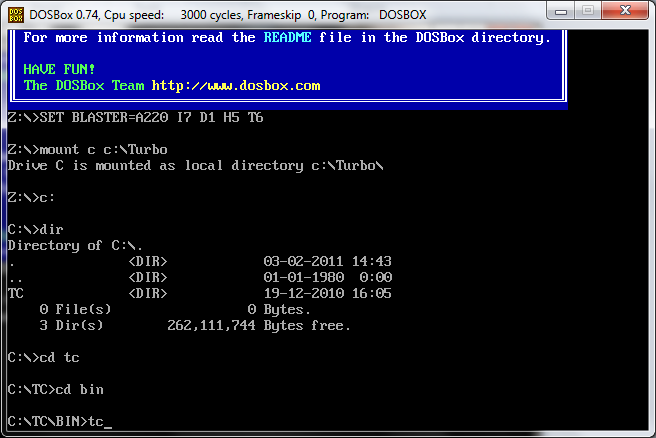
  6. In this window, we now need to mount the folder via this command:   This tells about the reason behind creating another directory while extracting TC3setup.exe. Mounting works relative to a folder, here Turbo.
  7. Work is almost done. Now, type “C:” to mount above mounted drive.
    To list the content of this mounted space, type ‘dir’
  8. Type
    >cd tc
    >cd bin
    to reach within subdirectories for tc.exe
    Now type tc and press Enter.
    Press Alt + Enter to go in Full Screen Mode.
This task may look all so tedious. But, everything can be automated in a single go.
Once you have successfully managed to run it in full screen mode, you can easily automate the process by editing configuration file. You can drop comments below in case of any problem to get through.
To run TC automatically on running DosBox:
Search for “DosBox” in start menu.
Nowclick onDosBox 0.74 Options
A configuration file in Notepad will be opened.
Go till the end of the document and add following lines there:
mount c c:\turbo
c:
cd tc/bin
tc
Save this file and exit from notepad.
Run DosBox again. Voilla! It will take you straight to TuboC++.